Check the week
Meeting days, class times, holidays for each student group, assignments, assessments, and lesson status stay visible in the grid.
A lesson planner for real classroom work
Classroom Studio puts your schedule, lesson plans, class tools, and classroom display in one place. Write the plan once, then bring the parts you need into class.
macOS app Download coming soon · macOS 14 or newer
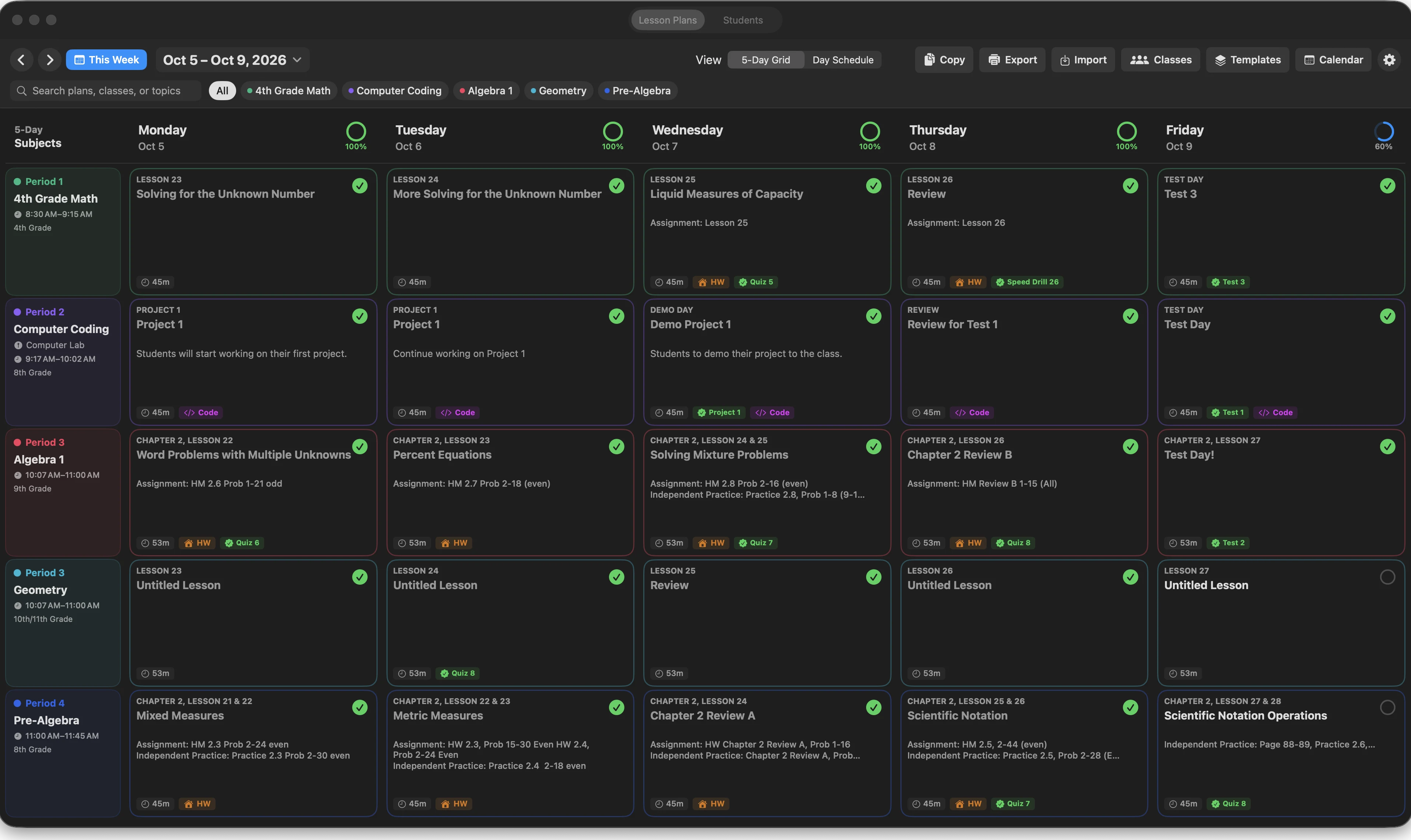
The five-day planner
See every class in the week, open a plan when you need the details, and come back to it when class begins.
Meeting days, class times, holidays for each student group, assignments, assessments, and lesson status stay visible in the grid.
Add goals, activities, materials, assignments, Independent Practice, assessments, and reflection notes.
Choose what students see, move the panels where you want them, and reveal Math steps as you go.
What stays together
Plan in your own way
Use templates, references, materials, assessments, assignments, Independent Practice, and reflection notes that make sense for your class.
Give each class its tools
Turn on Coding or Math for the classes that need them, define assessment types, and keep student rosters with the class they belong to.
Present without starting over
Move, resize, and reorder panels. Each Class Progress category remembers its layout, and Student View uses the same arrangement.
Math workspace · For classes that need it
Turn on Math for a class, add a problem to a lesson, and reveal each step when your students are ready.
Use it for equations, systems, straight-line graphs, labeled geometry diagrams, multiplication, long division, and fraction work.
Work with multiplication, long division, fractions, equations, systems, graphs, or geometry.
Reveal partial products, quotient steps, common denominators, inverse operations, and simplification one step at a time.
Math can sit beside the other lesson panels, and Student View updates as you reveal the work.
Whiteboard · In the macOS app
Open Whiteboard from the lesson workspace when you need to work something out by hand. The lesson stays open on the Mac while a configured Sidecar iPad gives you room to write.
Students see the board on the classroom display, with the lesson panels you choose beside it. Your work stays with the lesson and the part of class where you made it.
Use Pen, Highlighter, Eraser, or Select & Move, with undo and redo when you need them.
Leave Class Notes, Homework, Math, or another selected panel beside the writing area.
The board is saved with the lesson's current presentation phase, so it is there the next time you open that part of the lesson.
Tools for the class in front of you
Classroom Studio is the main app. The optional tools use the same classes, lessons, and schedule, so you do not have to set everything up twice.
Available now
Plan the week, write lesson plans, use templates, track assignments and assessments, export reports, and present to your class.
See how the pieces fit →Available for coding classes
Write and run source code, keep syntax and execution results together, and show selected code panels to students.
Available for math classes
Prepare worked problems, reveal the steps, and send equations, arithmetic, graphs, or geometry to Student View.
See the Math workspace →Available now
Keep one student profile across classes, search rosters, and manage enrollment from one place.
Available in the macOS app
Write on a shared classroom board while the lesson stays in view. Use a configured Sidecar iPad for the writing surface and keep selected panels beside it.
See the whiteboard →Planned
A future classroom companion built around the same teacher console and student display.
A closer look
Start with the part of teaching you are trying to make easier. These short guides show how the planner, display tools, whiteboard, math workspace, and coding tools fit together.
See what stays together when your weekly plan and classroom work live in one place.
Read the guide → 02 · Weekly viewUse the week at a glance to decide what needs attention before the first bell.
Read the guide → 03 · Writing surfaceWork through a problem by hand while your lesson notes stay close by.
Read the guide → 04 · Student ViewArrange the panels students need and keep teacher-only notes out of the way.
Read the guide → 05 · Class toolsTurn on the tools a class needs without making a second planning system.
Read the guide →How the app grows
The five-day planner stays at the center. Add a tool when a class actually needs one.
Classroom Studio
Download for macOS: Coming Soon. Want to hear when it is ready? Send us a note.
Contact us